For marketplace sellers processing hundreds of orders every morning, downloading packing slips from Flipkart Seller Hub presents a daily formatting hurdle.
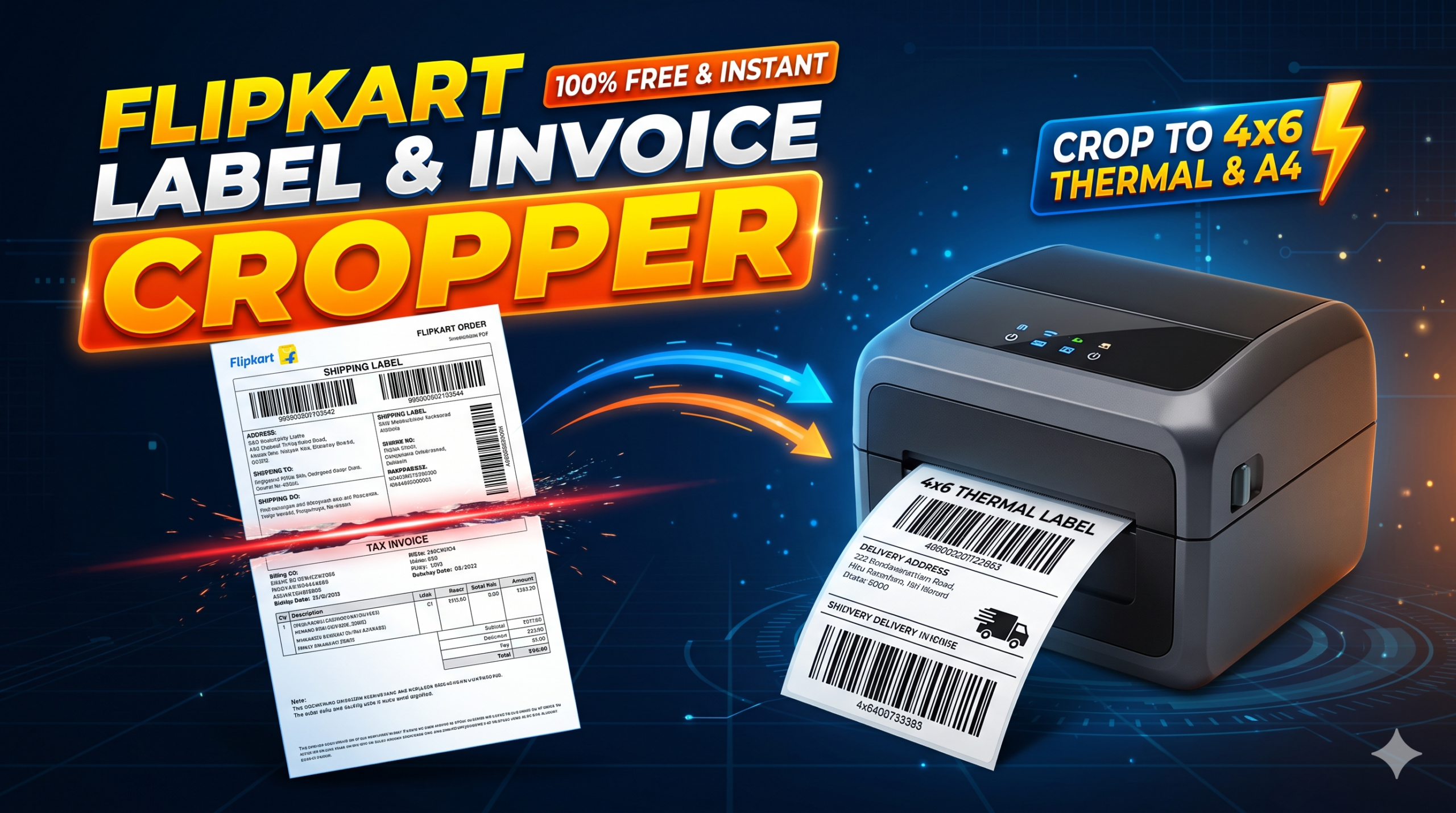
When you bulk-download orders, Flipkart merges the Shipping Label and the Customer Tax Invoice into a single, integrated A4 page.
If you try to print this integrated file on a standard 4×6 thermal printer, your printer scales down the entire page. Barcodes end up squished, unreadable by Ekart or Delhivery barcode scanners, and half of your thermal roll is wasted printing a paper invoice that belongs inside the package.
Here is a complete operational guide explaining how to do a Flipkart label crop with invoice using an online Flipkart shipping label crop tool—without manual cropping, paid subscriptions, or desktop software installations.
Why Sellers Need a Dedicated Flipkart Invoice Cropper
Under Indian GST norms, an order must carry a tax invoice, while logistics partners (Ekart, Shadowfax,Delhivery, Xpressbees) require a scannable shipping barcode on the outer box.
Flipkart bundles both onto one A4 sheet (595 x 842 pt):
- Upper Section (~48% of the page): Shipping Label containing customer address, AWB barcode,routing code, and return address.
- Lower Section (~52% of the page): Tax Invoice showing customer billing data, itemized pricing,CGST/SGST breakdowns, and seller GSTIN.
The Problem with Uncropped Dispatch Printing:
- Barcode Scan Rejections: Forcing an A4 PDF onto 4×6 thermal rolls compresses barcode lines,causing doorstep pickup executives to reject packages.
- Wasted Adhesive Paper: Thermal sticker paper costs ₹0.40 to ₹0.60 per label. Printing tax invoices on sticky thermal rolls wastes expensive stock.
- Customer Privacy Risks: Displaying detailed invoices on the exterior of parcels exposes declared product values and payment modes to handlers.
Using an automated Flipkart invoice cropper extracts the top label for your thermal printer while keeping your tax invoices separate for customer packing slips.
How to Crop Flipkart PDFs & Separate Labels in 3 Steps
Instead of using desktop graphics software or paying for tools like Quick Label Crop or E-Cropper, you can execute a clean Flipkart crop PDF directly in your browser:
Step 1: Download Your Orders PDF from Flipkart
Log in to your Flipkart Seller Hub, navigate to Orders $\rightarrow$ Active Orders $\rightarrow$ Ready to Dispatch, and select all pending shipments. Click Generate Labels / Packing Slips to download your multi-page order PDF.
Step 2: Upload to the Flipkart Label Cutter Tool
Open Flipkart Label Cropper. Drag and drop your downloaded file into the upload box.
Step 3: Choose Your Dispatch Format & Download
Select your required print configuration:
- 4×6 Thermal Mode (Single Label): Automatically trims the tax invoice away and scales the shipping label to 100 x 150 mm (4×6 in) for thermal roll printers (TVS, TSC, Zebra, Xprinter).
- A4 Multi-Label Mode (4-in-1): Compiles 4 cropped shipping labels per A4 sheet, cutting paper and sticker sheet costs by up to 75% for laser/inkjet printers.
The engine processes a batch of 50 to 100 orders in under 5 seconds, giving you a print-ready PDF file.
Quick Label Crop Flipkart vs. Browser-Based Cropping
Many sellers search for alternatives like quick label crop flipkart or e cropper flipkart. While conventional tools work, many enforce daily quotas, require recurring subscriptions, or upload files to external cloud servers.
Here is why a browser-based Flipkart label cutter offers a better alternative:
| Feature | Typical Cloud Tools | Flipkart Label Cropper |
| Data Privacy | PDFs hit remote AWS/cloud servers | 100% Client-Side (No server uploads) |
| Batch Processing Speed | 1 to 3 minutes (Upload/Download queues) | 3 to 5 seconds (Local browser memory) |
| Pricing / Quota | Daily limits or monthly fees | Free for everyday seller dispatches |
| Output Quality | Often compressed | Vector-crisp barcodes at 100% scale |
Best Thermal Printer Settings for Clear Barcode Scans
To avoid courier pickup delays, ensure your system print properties are configured properly:
- Page Size: Select 4 x 6 in or 100 x 150 mm.
- Scale: Always set scale to 100% or Actual Size. Avoid selecting “Fit to Printable Area” or “Shrink to Fit”, as scaling can distort barcode line spacing.
- Darkness / Density: In your printer preferences, set darkness between 8 and 12 to prevent barcode fade.
Frequently Asked Questions (FAQ)
Can I do a Flipkart label and invoice crop for bulk PDF files?
Yes. You can upload a multi-page PDF containing 50, 100, or more shipments. The tool automatically processes every page in the batch.
Does this tool upload my customer data to an online server?
No. The PDF cropping engine runs locally inside your browser using JavaScript. Your customer addresses, sales figures, and invoices never leave your computer.
Can I still access the tax invoice after cropping?
Yes. Cropping only generates a formatted shipping label document. Your original PDF downloaded from Flipkart Seller Hub remains completely untouched on your device for filing GST returns.
Leave a Reply