Blog

  • How to Crop Flipkart Label and Invoice PDFs for 4×6 Thermal Printers

    How to Crop Flipkart Label and Invoice PDFs for 4×6 Thermal Printers

    Managing daily dispatches on Flipkart Seller Hub requires speed and accuracy. When orders pile up before morning courier pickups, manually resizing shipping manifests slows down your packing line and increases the risk of barcode scan errors.

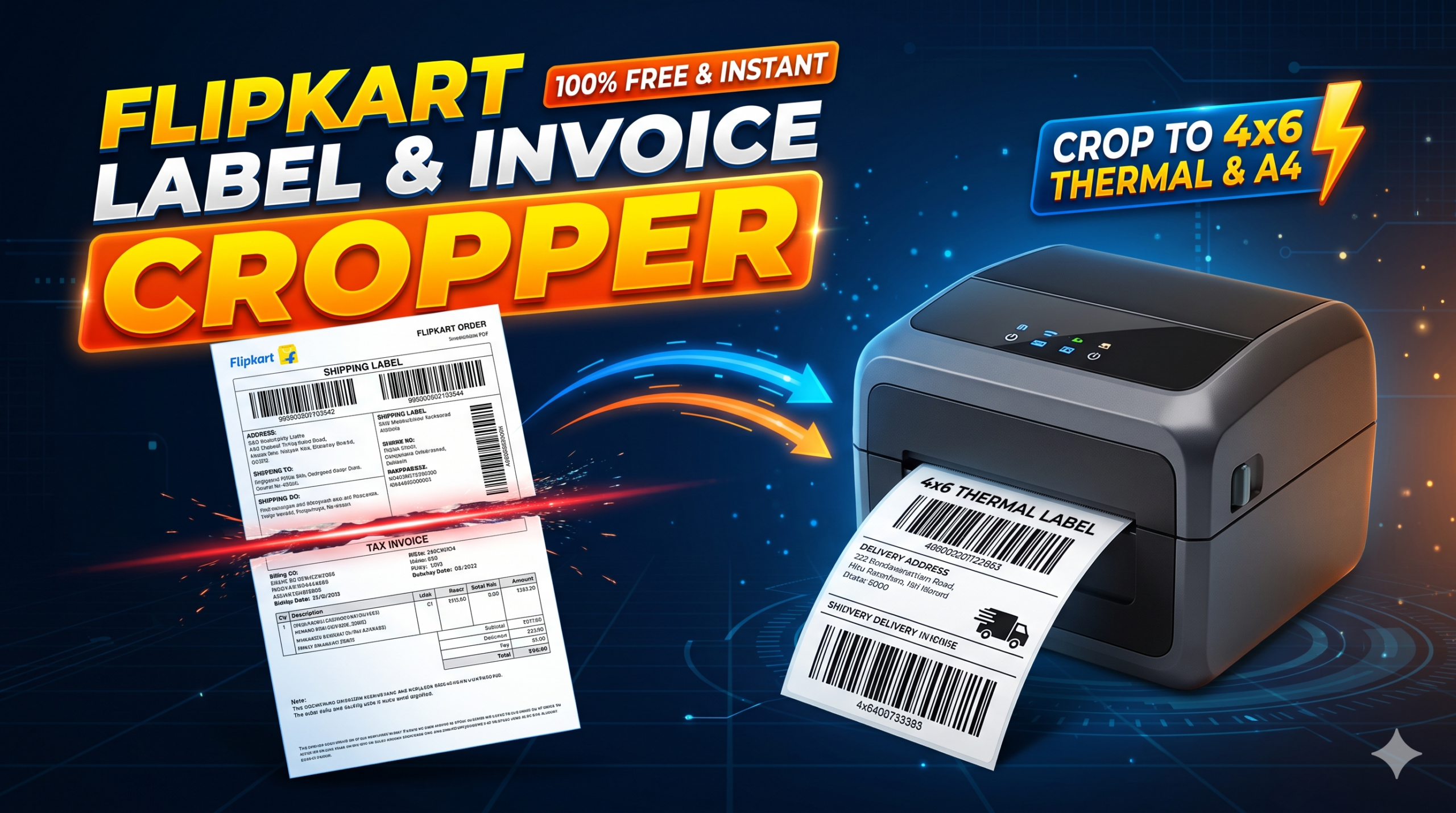
    By default, Flipkart bundles both the delivery address tag and the customer’s GST invoice onto a single A4 PDF sheet. Using an automated Flipkart label cutter and invoice label crop tool eliminates manual editing and prepares your orders for thermal printing in seconds.

    Understanding the Default Flipkart Label and Invoice Layout

    When you download bulk manifests from Seller Hub, each page contains two distinct sections:

    • Top Section (Shipping Tag): Displays the buyer’s delivery address, return center details, EKart sorting hub code,and the primary scannable tracking barcode.
    • Bottom Section (Tax Invoice): Lists the product SKU, HSN code, GST breakup, and seller billing details.

    If you print this unedited file directly onto a thermal roll printer, the driver shrinks the entire A4 sheet to fit the roll. This reduces the Flipkart label text to an unreadable size and blurs the barcode lines, leading to pickup rejections.

    Getting the Exact Shipping Label Size Right

    To ensure 100% barcode scannability across all courier sorting facilities, your printed output must match standard thermal dimensions:

    • Standard Thermal Dimensions: 4 × 6 inches (100 mm × 150 mm)
    • Print Resolution: 203 DPI or 300 DPI
    • Supported Printers: TSC, Zebra, Xprinter, TVS, and Rollo thermal label printers

    Using a dedicated shipping label cropper automatically detects the exact boundary of the top shipping tag and scales it cleanly to 4×6 inches without stretching the barcode.

    Step-by-Step: How to Perform a 1-Click PDF Label Crop

    You do not need expensive desktop software or complex PDF editors to crop Flipkart label batches. Follow these steps using our browser-based Flipkart Label Cropper

    Export Your Orders: Log in to your Flipkart Seller dashboard, select your Ready to Ship orders, and download the combined PDF manifest.

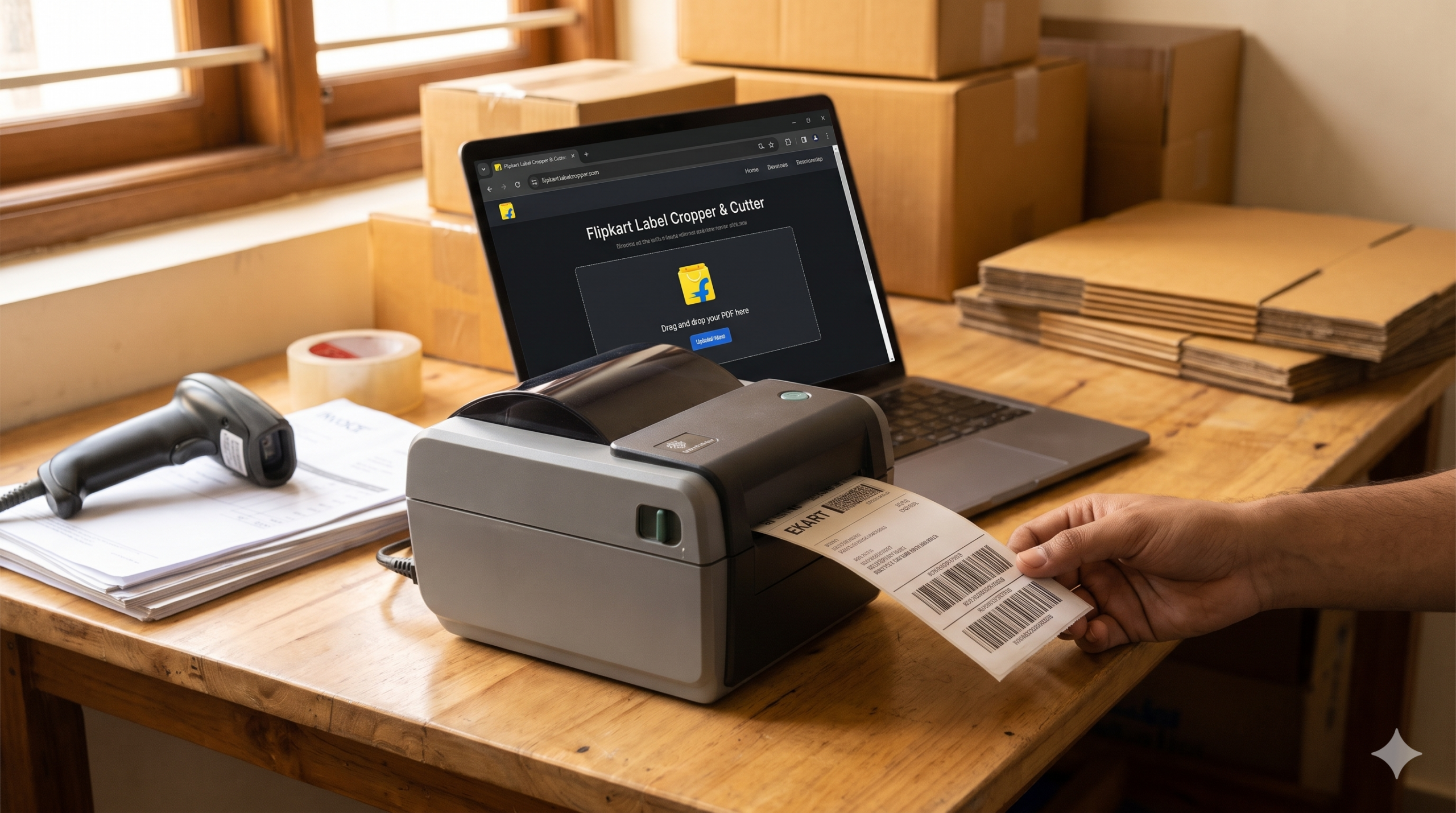
    Upload to the Flipkart Label Crop Tool: Open Flipkart Label Cropper and upload your multi-page PDF document.

    Select Your Output Layout:

    • 4×6 Thermal Roll: Extracts every label crop into individual 100mm × 150mm pages ready for thermal rolls.
    • Separate Invoice PDF: Runs an instant invoice label crop that keeps all customer tax invoices neatly organized in a separate file for standard A4 printing.
    • 4-in-1 A4 Sticker Sheet: Arranges four cropped labels onto a single A4 page if you print using standard inkjet or laser printers.

    Download and Print: Click download and send the clean PDF label crop directly to your thermal printer

    Why Browser-Based Cropping Protects Seller Data

    Many online PDF tools upload your seller manifests to external cloud servers. Because Flipkart shipping label cropper processes files locally inside your web browser, sensitive customer phone numbers, addresses, and order values never leave your computer.

    Start streamlining your warehouse dispatch workflow today with our free Flipkart label cutter—built specifically for high-volume Indian e-commerce sellers.
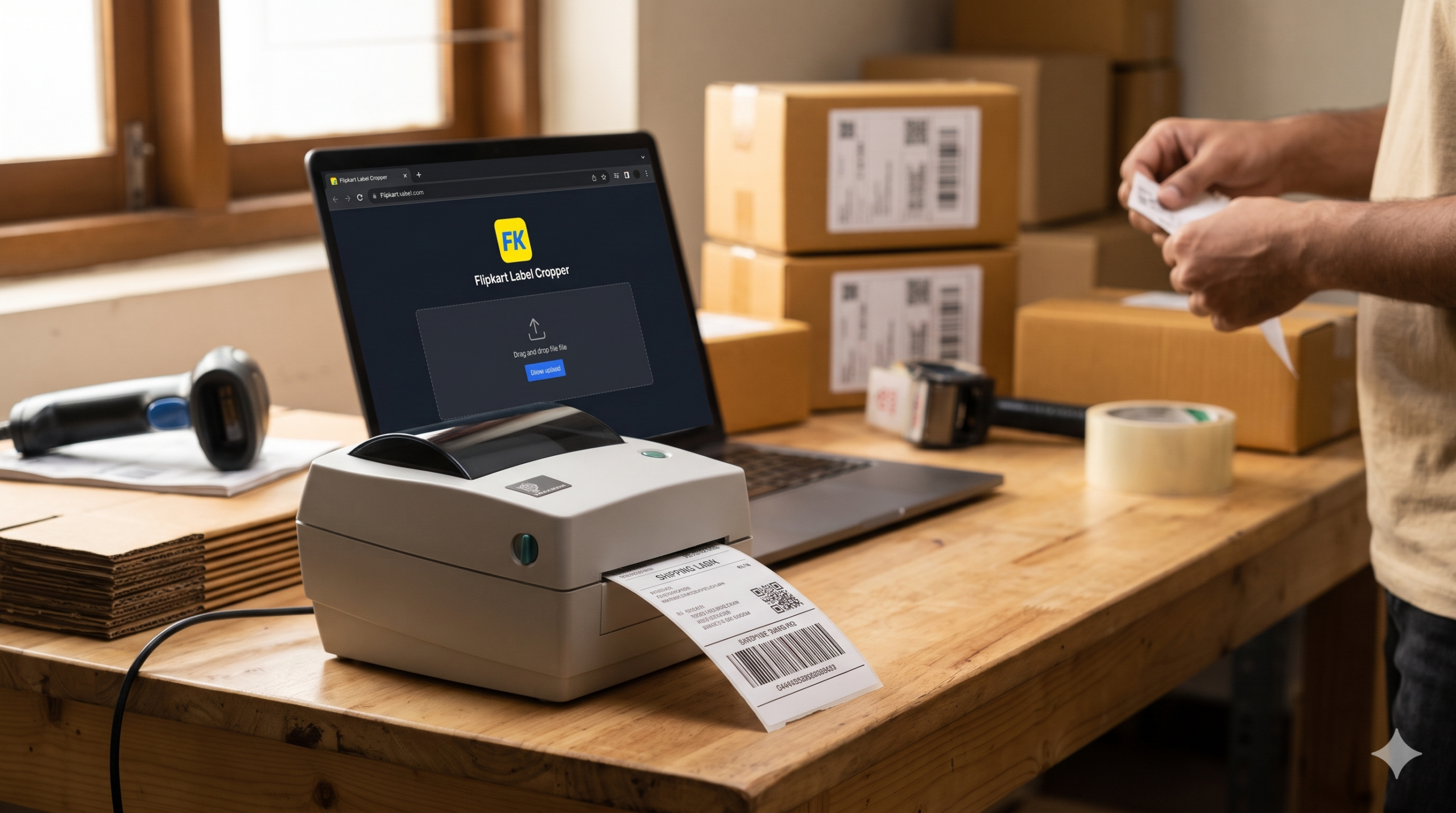
  • Flipkart Label Cutter & Crop Guide: How to Format 4×6 Shipping Labels and Tax Invoices

    For sellers shipping daily orders on Flipkart Marketplace, fast dispatch packaging is essential to keep logistics metrics high and avoid dispatch cancellation penalties. However, one common daily frustration in order processing is formatting default document downloads.

    When you download orders in bulk from Seller Hub, Flipkart provides a merged document layout. Trying to print this file without a dedicated Flipkart label cutter often results in misaligned printouts, blurred barcodes, or wasted adhesive paper rolls.

    Why Every Seller Needs an Automated Flipkart Label Crop Workflow

    Sellers often attempt manual cropping using generic PDF readers or screenshot tools. This approach creates major bottlenecks:

    1. Wasted Sticky Paper: Printing the tax invoice onto expensive thermal paper rolls wastes adhesive media. Tax invoices should be placed inside the parcel on standard paper, while only the cropped label belongs on the exterior.
    2. Barcode Scan Failures: Manual cropping often distorts aspect ratios, resulting in rejected packages at hub pickup.
    3. Data Security Concerns: Offline software often requires desktop installations that may expose sensitive customer phone numbers or order data.

    Using an in-browser utility specifically built for label crop operations automates edge detection, aligning barcodes to exact print borders without quality loss.

  • Flipkart Label Cutter: How to Crop Shipping Labels & Invoices to 4×6 Thermal Format

    Flipkart Label Cutter: How to Crop Shipping Labels & Invoices to 4×6 Thermal Format

    For active sellers on Flipkart Seller Hub, packing morning dispatches quickly is critical to avoiding SLA breaches. A common daily bottleneck is formatting default shipping label PDFs.

    Flipkart bundles the delivery shipping label and the customer tax invoice onto a single multi-page sheet. Printing this file directly onto a standard 4×6 thermal roll printer (like TSC, Xprinter, Zebra, or TVS) results in illegible barcodes,wasted thermal paper, or distorted text scaling.

    Why Flipkart Seller Hub Bundles Labels and Invoices

    When downloading batch dispatch documents under Orders → Ready to Ship, Flipkart generates combined PDF files:

    • Top Half / Label Section: Contains the recipient address, return warehouse details, EKart routing logistics, and the primary scannable tracking barcode.
    • Bottom Half / Invoice Section: Displays item price, GST breakup, HSN codes, and seller signature details.

    Placing an invoice onto expensive 4×6 thermal sticker paper wastes adhesive inventory and exposes buyer billing data on package exteriors. Conversely, standard A4 desktop printing wastes 75% of the page without manual cropping. An automated Flipkart label crop workflow eliminates this friction entirely.

    How to Perform a 1-Click Flipkart Label Crop Online

    Using our dedicated Flipkart Label Cropper utility, batch PDFs convert into ready-to-print rolls in under three seconds:

    1. Download Your PDF Batch: Log in to your Flipkart Seller dashboard and download your pending dispatch manifest as a regular PDF.
    2. Drop the File into the Tool: Upload the document to the Flipkart label cutter.
    3. Choose Output Format: Select 4×6 Thermal (100mm × 150mm) for standard roll printers, or 4-in-1 A4 if using sticker sheets on an inkjet/laser printer.
    4. Export Clean Files: The engine instantly extracts and trims the shipping label while keeping the tax invoice cleanly preserved as a separate page.

    Key Advantages of Using a Browser-Based Label Cutter

    • Clean Barcode Readability: Thermal courier scanners at sorting hubs require crisp 203 DPI to 300 DPI barcode lines. Automated edge detection scales labels proportionally without blurring tracking lines.
    • Complete Buyer Data Privacy: Because our Flipkart shipping label crop tool runs client-side in the web browser, seller sales records and customer phone numbers are never stored on external servers.
    • Cost Reduction: Printing only thermal labels saves paper rolls, while invoices can be batched on economical standard paper.

    Recommended Thermal Printer Settings

    To ensure barcodes scan without errors at pickup:

    • Paper Size: Set directly to 4 x 6 inches (or 100 x 150 mm).
    • Scale: Select Actual Size (100%) or Fit to Printable Area; do not stretch across axes.
    • Darkness / Density: Set density between 8 and 12 on thermal drivers so dark barcode lines do not bleed together.

    Begin formatting daily dispatch batches today with the free Flipkart Label Cropper—no installation or account creation required.

  • Flipkart Shipping Label Size: 4×6 Thermal & A4 Settings Guide

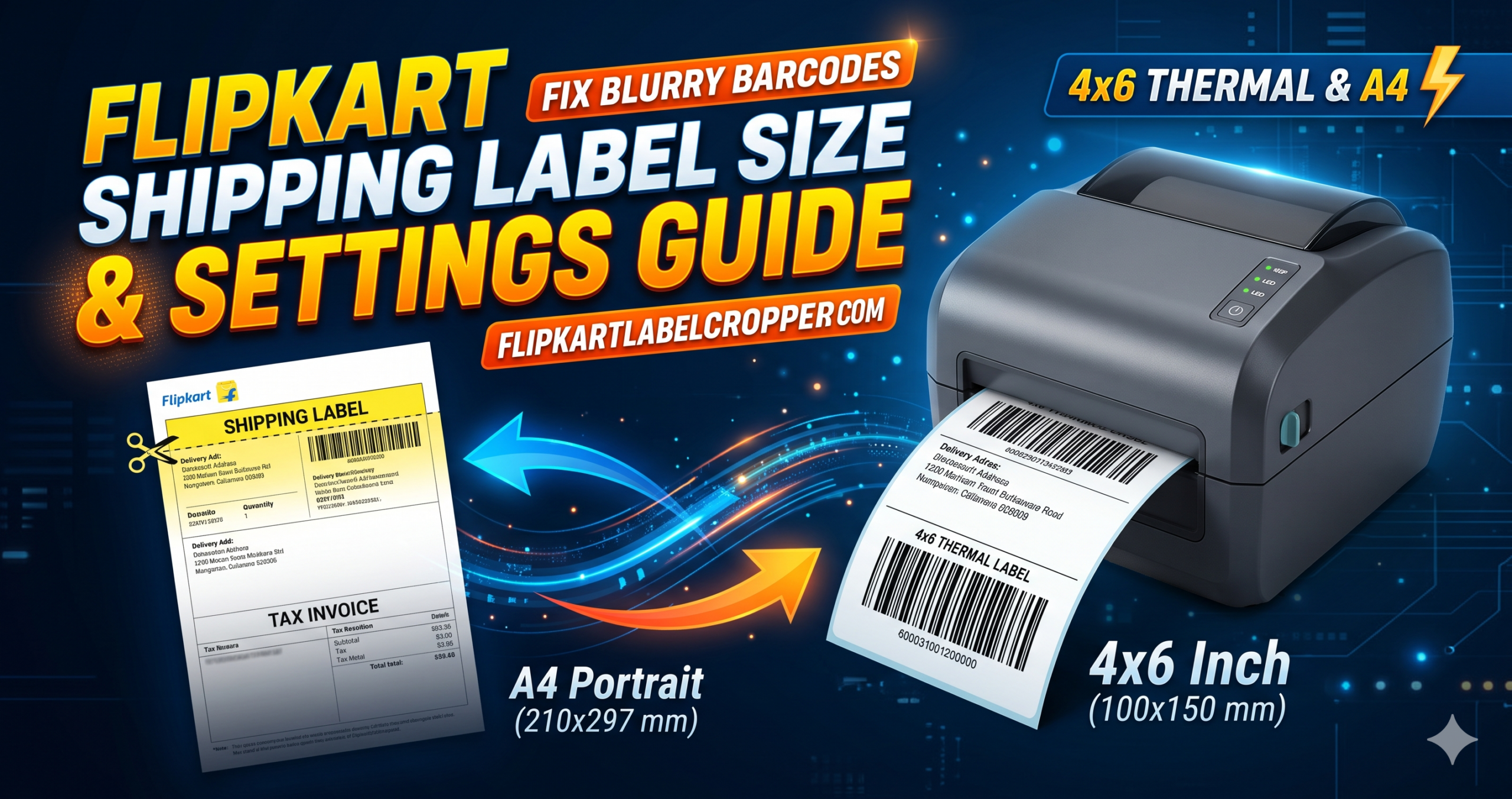
    Flipkart Shipping Label Size: 4×6 Thermal & A4 Settings Guide

    When dispatching daily orders from Flipkart Seller Hub, one of the most frustrating errors sellers face is the dreaded “Barcode Unscannable” rejection from courier pickup executives (Ekart, Delhivery, or Shadowfax).

    Nine out of ten times, this issue isn’t caused by a broken printer or a low-grade thermal roll. It happens because of a mismatch between the Flipkart shipping label size in the PDF and the paper size configured in your printer driver.

    Here is an operational guide to Flipkart shipping label dimensions, thermal barcode printer driver settings,and how to format your files for a 100% first-pass scan rate.

    What is the Official Flipkart Shipping Label Size?

    When you click “Download Labels” in Flipkart Seller Hub, Flipkart does not provide a standalone 4×6 thermal sticker. Instead, it generates an A4 portrait document (210 x 297 mm / 595 x 842 points) that bundles both the dispatch sticker and the tax invoice on one page.

    Document ComponentRaw Flipkart DownloadStandard Thermal Sticker RollA4 Sheet (4-in-1 Layout)
    Dimensions (Inches)8.27 x 11.69 in4 x 6 in8.27 x 11.69 in (Split)
    Dimensions (Millimeters)210 x 297 mm100 x 150 mm105 x 148 mm per sticker
    Page LayoutLabel (Top) + Invoice (Bottom)Isolated Shipping Label Only4 Cropped Labels per Page
    Recommended PrinterStandard Laser / InkjetTVS, TSC, Zebra, XprinterAny Desktop A4 Printer

    Because Flipkart’s courier logistics barcode requires high-density scan bars, feeding an uncropped A4 PDF straight into a 4×6 thermal printer forces your computer to shrink the document by over 50%. This compression distorts the barcode gaps and causes doorstep scanner failures.

    The Correct Thermal Printer Settings for Flipkart Labels

    To get dark, crisp barcodes that scan on the first try, verify these three essential driver settings before sending your file to print:

    1. Match Driver Paper Size to Your Roll (100 x 150 mm)

    • Open Printers & Scanners in your operating system settings.
    • Select your thermal barcode printer (TVS LP46, TSC TE244, Rongta, Xprinter, or Zebra) and open Printing Preferences.
    • Set the paper stock size explicitly to 4.00 x 6.00 inches or 100.0 x 150.0 mm. Never leave it on “Letter”or “User Defined” defaults.

    2. Lock Scaling to “Actual Size” (100%)

    • In your print window, select “Actual Size” or set Scale: 100%.
    • Never select “Fit to Printable Area” or “Shrink Oversized Pages.” Scaling stretches the label vertically or horizontally, ruining the barcode’s optical resolution.

    3. Adjust Print Darkness & Print Speed

    • Print Darkness / Density: Set your thermal head darkness between 8 and 11 (or 60–70%). Setting it too high smudges thin barcode lines; setting it too low creates faded, broken gaps.
    • Print Speed: If you notice ribbon wrinkling or barcode drift, decrease print speed from 5 ips to 3 or 4 inches per second.

    How to Convert Flipkart A4 PDFs to 4×6 Size in Seconds

    You don’t need manual PDF slicing tools or expensive paid extensions to convert your files. Using the free Flipkart Label Cropper web tool, you can format batches instantly:

    1. Upload Your Orders PDF: Drag and drop your Flipkart Seller Hub dispatch file into flipkartlabelcropper.com.
    2. Select “Thermal 4×6”: The tool detects the shipping label boundaries, strips away the bottom tax invoice, and outputs a native 100 x 150 mm vector PDF.
    3. Print Without Login: Click download and send the file straight to your thermal printer with zero upload delays and full data privacy.

    Don’t Have a Thermal Printer? Use the A4 4-in-1 Sheet Option

    If you fulfill orders using a standard office laser or inkjet printer, you don’t need to waste an entire A4 sheet on a single dispatch.

    Select the A4 4-in-1 mode in the cropper tool to arrange 4 cropped labels cleanly on one sheet. This cuts paper and adhesive label costs by 75% while keeping parcel identification sharp and legible.

    Frequently Asked Questions (FAQ)

    What is the exact size of a Flipkart label in pixels?

    At standard 203 DPI thermal resolution, a 4×6 inch label is 812 x 1218 pixels. At 300 DPI, it translates to 1200 x 1800 pixels.

    Why is my Flipkart label barcode printing blurry?

    Blurry barcodes usually occur when an uncropped A4 packing slip is printed directly using “Fit to Page” on thermal paper. Crop the label to native 4×6 format first and print at 100% scale.

    Can I print customer invoices on thermal rolls?

    While technically possible, printing tax invoices on thermal rolls is not recommended. Thermal rolls cost significantly more than plain paper, and thermal print fades over time when exposed to heat and sunlight.

  • Flipkart Label Crop with Invoice: How to Crop PDF & Separate Tax Invoices Free

    Flipkart Label Crop with Invoice: How to Crop PDF & Separate Tax Invoices Free

    For marketplace sellers processing hundreds of orders every morning, downloading packing slips from Flipkart Seller Hub presents a daily formatting hurdle.

    When you bulk-download orders, Flipkart merges the Shipping Label and the Customer Tax Invoice into a single, integrated A4 page.

    If you try to print this integrated file on a standard 4×6 thermal printer, your printer scales down the entire page. Barcodes end up squished, unreadable by Ekart or Delhivery barcode scanners, and half of your thermal roll is wasted printing a paper invoice that belongs inside the package.

    Here is a complete operational guide explaining how to do a Flipkart label crop with invoice using an online Flipkart shipping label crop tool—without manual cropping, paid subscriptions, or desktop software installations.

    Why Sellers Need a Dedicated Flipkart Invoice Cropper

    Under Indian GST norms, an order must carry a tax invoice, while logistics partners (Ekart, Shadowfax,Delhivery, Xpressbees) require a scannable shipping barcode on the outer box.

    Flipkart bundles both onto one A4 sheet (595 x 842 pt):

    1. Upper Section (~48% of the page): Shipping Label containing customer address, AWB barcode,routing code, and return address.
    2. Lower Section (~52% of the page): Tax Invoice showing customer billing data, itemized pricing,CGST/SGST breakdowns, and seller GSTIN.

    The Problem with Uncropped Dispatch Printing:

    • Barcode Scan Rejections: Forcing an A4 PDF onto 4×6 thermal rolls compresses barcode lines,causing doorstep pickup executives to reject packages.
    • Wasted Adhesive Paper: Thermal sticker paper costs ₹0.40 to ₹0.60 per label. Printing tax invoices on sticky thermal rolls wastes expensive stock.
    • Customer Privacy Risks: Displaying detailed invoices on the exterior of parcels exposes declared product values and payment modes to handlers.

    Using an automated Flipkart invoice cropper extracts the top label for your thermal printer while keeping your tax invoices separate for customer packing slips.

    How to Crop Flipkart PDFs & Separate Labels in 3 Steps

    Instead of using desktop graphics software or paying for tools like Quick Label Crop or E-Cropper, you can execute a clean Flipkart crop PDF directly in your browser:

    Step 1: Download Your Orders PDF from Flipkart

    Log in to your Flipkart Seller Hub, navigate to Orders $\rightarrow$ Active Orders $\rightarrow$ Ready to Dispatch, and select all pending shipments. Click Generate Labels / Packing Slips to download your multi-page order PDF.

    Step 2: Upload to the Flipkart Label Cutter Tool

    Open Flipkart Label Cropper. Drag and drop your downloaded file into the upload box.

    Step 3: Choose Your Dispatch Format & Download

    Select your required print configuration:

    • 4×6 Thermal Mode (Single Label): Automatically trims the tax invoice away and scales the shipping label to 100 x 150 mm (4×6 in) for thermal roll printers (TVS, TSC, Zebra, Xprinter).
    • A4 Multi-Label Mode (4-in-1): Compiles 4 cropped shipping labels per A4 sheet, cutting paper and sticker sheet costs by up to 75% for laser/inkjet printers.

    The engine processes a batch of 50 to 100 orders in under 5 seconds, giving you a print-ready PDF file.

    Quick Label Crop Flipkart vs. Browser-Based Cropping

    Many sellers search for alternatives like quick label crop flipkart or e cropper flipkart. While conventional tools work, many enforce daily quotas, require recurring subscriptions, or upload files to external cloud servers.

    Here is why a browser-based Flipkart label cutter offers a better alternative:

    FeatureTypical Cloud ToolsFlipkart Label Cropper
    Data PrivacyPDFs hit remote AWS/cloud servers100% Client-Side (No server uploads)
    Batch Processing Speed1 to 3 minutes (Upload/Download queues)3 to 5 seconds (Local browser memory)
    Pricing / QuotaDaily limits or monthly feesFree for everyday seller dispatches
    Output QualityOften compressedVector-crisp barcodes at 100% scale

    Best Thermal Printer Settings for Clear Barcode Scans

    To avoid courier pickup delays, ensure your system print properties are configured properly:

    1. Page Size: Select 4 x 6 in or 100 x 150 mm.
    2. Scale: Always set scale to 100% or Actual Size. Avoid selecting “Fit to Printable Area” or “Shrink to Fit”, as scaling can distort barcode line spacing.
    3. Darkness / Density: In your printer preferences, set darkness between 8 and 12 to prevent barcode fade.

    Frequently Asked Questions (FAQ)

    Can I do a Flipkart label and invoice crop for bulk PDF files?

    Yes. You can upload a multi-page PDF containing 50, 100, or more shipments. The tool automatically processes every page in the batch.

    Does this tool upload my customer data to an online server?

    No. The PDF cropping engine runs locally inside your browser using JavaScript. Your customer addresses, sales figures, and invoices never leave your computer.

    Can I still access the tax invoice after cropping?

    Yes. Cropping only generates a formatted shipping label document. Your original PDF downloaded from Flipkart Seller Hub remains completely untouched on your device for filing GST returns.

  • Flipkart Label Crop Online: Best Free Tool to Crop Shipping Labels (2026 Guide)

    Flipkart Label Crop Online: Best Free Tool to Crop Shipping Labels (2026 Guide)

    Flipkart Label Crop Online: Best Free Tool to Crop Shipping Labels

    Every e-commerce seller on Flipkart knows the daily friction of the order packing routine. You log into Flipkart Seller Hub, download your bulk dispatch orders, and receive a multi-page A4 PDF file.

    The problem? Each page contains both the customer shipping label on top and the tax invoice on the bottom.

    If you try to print this directly on a 4×6 thermal barcode printer, your printer shrinks the entire A4 sheet. The result is tiny, unreadable barcodes that get rejected by Ekart or Delhivery pickup executives.

    That is why thousands of sellers use a dedicated Flipkart label crop tool to isolate their labels. Here is how you can use a free Flipkart label cropper to format your dispatch labels in seconds without downloading clunky desktop software.

    What is a Flipkart Label Crop Tool?

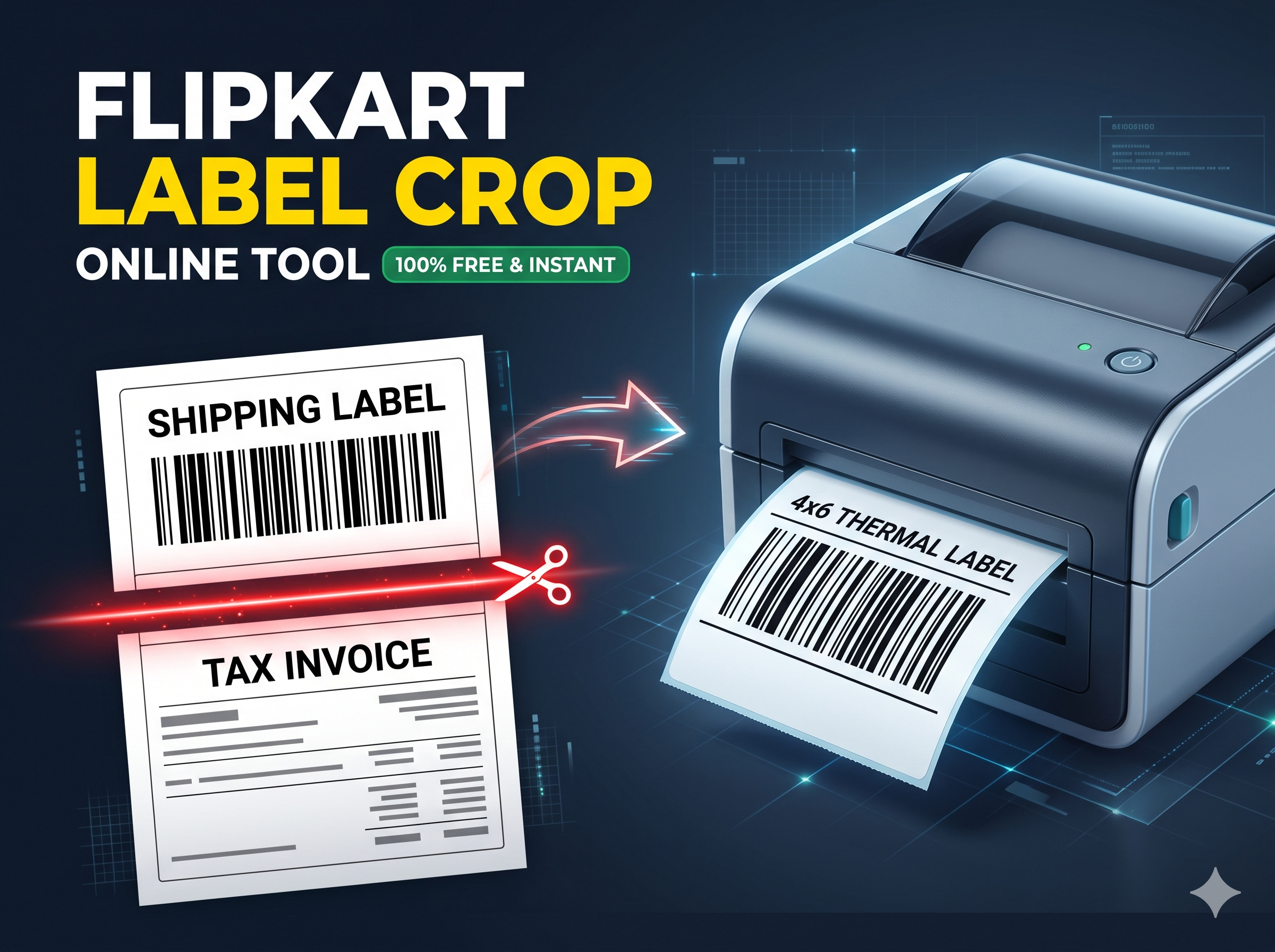
    A Flipkart label crop tool is an automated web utility built specifically for marketplace dispatch operations. Instead of manually taking screenshots or editing PDFs in Adobe Acrobat, the tool automatically scans the standard A4 dimensions, strips away the bottom tax invoice, and scales the top shipping section into a standard 4×6 inch (100×150 mm) thermal label.

    Why You Shouldn’t Print Full A4 Sheets on Thermal Paper

    1. Barcode Scanning Failures: Forcing an A4 page onto a 4×6 sticker compresses the vertical barcode lines, causing courier scanners to fail.
    2. Wasted Thermal Paper: Printing tax invoices on adhesive thermal rolls wastes sticker paper that costs up to ₹0.60 per print.
    3. Privacy Exposure: Sticking complete tax invoices with pricing and GST breakdowns on the outside of packages exposes sensitive order details.

    How to Do a Flipkart Label Crop Online (Step-by-Step)

    Performing a Flipkart label crop online takes less than 5 seconds using our free browser-based engine.

    Step 1: Download Packing Slips from Seller Hub

    In your Flipkart Seller Dashboard, go to Orders $\rightarrow$ Active Orders $\rightarrow$ Ready to Dispatch. Select all orders and click Generate Labels / Packing Slips.

    Step 2: Upload to Flipkart Label Cropper

    Head over to Flipkart Label Cropper. Simply drag and drop your downloaded multi-page PDF into the upload area.

    Step 3: Select Your Preferred Output Layout

    Choose the layout that fits your warehouse setup:

    • Thermal 4×6 Inch (100×150 mm): Tailored for standard barcode printers (TVS LP46, Xprinter, TSC, Zebra).
    • A4 Sheet (4 Labels per Page): Formats 4 cropped labels cleanly onto one A4 sticker sheet for laser and inkjet printers.

    Step 4: Download & Print

    Click download. The Flipkart label cropper generates a clean, high-resolution PDF ready for instant printing at 100% scale.

    Why Choose Our Browser-Based Flipkart Label Cropper?

    While there are multiple options available for Flipkart label crop, most tools require software installations or upload your documents to third-party cloud servers.

    Here is why sellers prefer our platform:

    • 100% Data Privacy: Your dispatch files contain sensitive buyer phone numbers, addresses, and order values. Our tool processes PDFs entirely within your web browser using client-side JavaScript. Your files are never uploaded to a server.
    • Instant Processing Speed: Slicing 50 to 100 pages takes only 3 to 5 seconds because there is zero file upload or download latency.
    • Completely Free: No hidden credits, watermarks, or trial limits for everyday label cropping.

    Optimal Thermal Printer Settings for Flipkart Labels

    To get dark, crisp barcodes that scan on the first try at your warehouse doorstep:

    • Paper Size Setting: Set your thermal printer driver to 4×6 in or 100 x 150 mm.
    • Page Scaling: Always select Actual Size or 100% Scale in your print window. Never choose “Fit to Printable Area” or “Shrink Oversized Pages”.
    • Print Darkness: Adjust your printer properties to a darkness level between 8 and 10 to prevent thermal fading.

    Frequently Asked Questions (FAQ)

    Can I do a Flipkart label crop for multiple pages at once?

    Yes. You can upload a single Flipkart PDF containing 1, 50, or 200+ orders, and the tool will crop each page into an individual 4×6 thermal label automatically.

    Is the Flipkart label crop tool safe for customer data?

    Yes. Because the cropping engine runs locally on your computer inside your web browser, no customer information or address data ever leaves your device.

    Can I print cropped Flipkart labels on normal A4 sticker sheets?

    Yes. Select the A4 4-in-1 mode to arrange four cropped shipping labels on a single A4 sticker sheet, cutting paper waste by 75%.

  • How to Crop Flipkart Shipping Labels to 4×6 Thermal Format Online (Free Guide)

    If you sell on Flipkart Seller Hub, you know the daily struggle of processing dispatch labels. When an order comes in, Flipkart generates a single A4 PDF sheet that bundles the Shipping Label on the upper half and the Customer Tax Invoice on the lower half.

    For sellers using modern thermal barcode printers (such as TVS LP46, Xprinter, TSC, or Zebra), printing an uncropped A4 PDF directly creates major headaches:

    • The barcode scales down, becoming blurry or unreadable by courier pickup personnel.
    • Half of your expensive thermal sticker roll is wasted printing the tax invoice on the parcel.
    • Dispatches slow down drastically due to manual screenshotting and Adobe Acrobat slicing.

    In this guide, we break down how to crop Flipkart shipping labels to standard 4×6 thermal dimensions (or 4-in-1 A4 sheets) in under 5 seconds—completely free, with zero manual software editing.