Flipkart Label Crop Online: Best Free Tool to Crop Shipping Labels
Every e-commerce seller on Flipkart knows the daily friction of the order packing routine. You log into Flipkart Seller Hub, download your bulk dispatch orders, and receive a multi-page A4 PDF file.
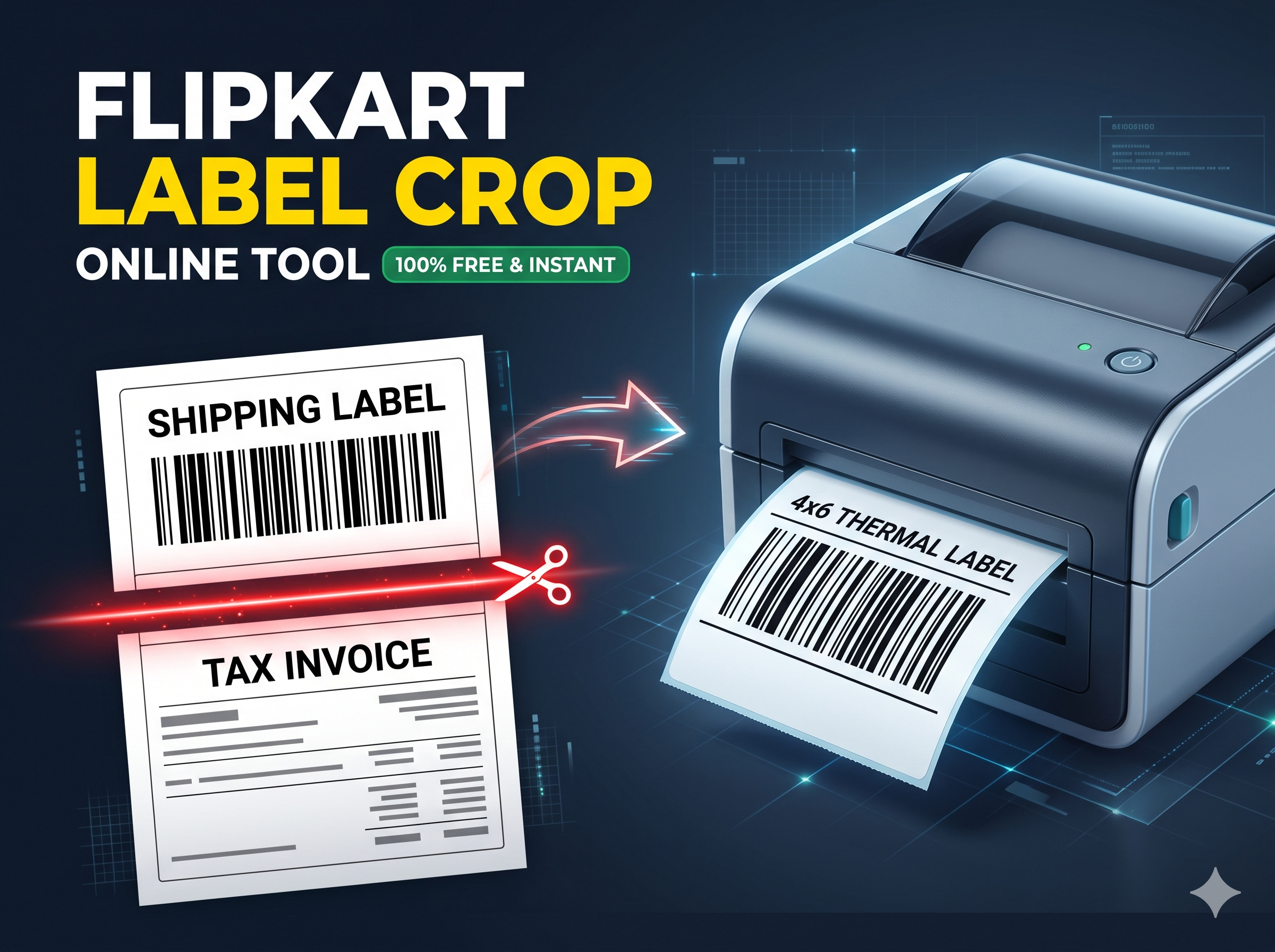
The problem? Each page contains both the customer shipping label on top and the tax invoice on the bottom.
If you try to print this directly on a 4×6 thermal barcode printer, your printer shrinks the entire A4 sheet. The result is tiny, unreadable barcodes that get rejected by Ekart or Delhivery pickup executives.
That is why thousands of sellers use a dedicated Flipkart label crop tool to isolate their labels. Here is how you can use a free Flipkart label cropper to format your dispatch labels in seconds without downloading clunky desktop software.
What is a Flipkart Label Crop Tool?
A Flipkart label crop tool is an automated web utility built specifically for marketplace dispatch operations. Instead of manually taking screenshots or editing PDFs in Adobe Acrobat, the tool automatically scans the standard A4 dimensions, strips away the bottom tax invoice, and scales the top shipping section into a standard 4×6 inch (100×150 mm) thermal label.
Why You Shouldn’t Print Full A4 Sheets on Thermal Paper
- Barcode Scanning Failures: Forcing an A4 page onto a 4×6 sticker compresses the vertical barcode lines, causing courier scanners to fail.
- Wasted Thermal Paper: Printing tax invoices on adhesive thermal rolls wastes sticker paper that costs up to ₹0.60 per print.
- Privacy Exposure: Sticking complete tax invoices with pricing and GST breakdowns on the outside of packages exposes sensitive order details.
How to Do a Flipkart Label Crop Online (Step-by-Step)
Performing a Flipkart label crop online takes less than 5 seconds using our free browser-based engine.
Step 1: Download Packing Slips from Seller Hub
In your Flipkart Seller Dashboard, go to Orders $\rightarrow$ Active Orders $\rightarrow$ Ready to Dispatch. Select all orders and click Generate Labels / Packing Slips.
Step 2: Upload to Flipkart Label Cropper
Head over to Flipkart Label Cropper. Simply drag and drop your downloaded multi-page PDF into the upload area.
Step 3: Select Your Preferred Output Layout
Choose the layout that fits your warehouse setup:
- Thermal 4×6 Inch (100×150 mm): Tailored for standard barcode printers (TVS LP46, Xprinter, TSC, Zebra).
- A4 Sheet (4 Labels per Page): Formats 4 cropped labels cleanly onto one A4 sticker sheet for laser and inkjet printers.
Step 4: Download & Print
Click download. The Flipkart label cropper generates a clean, high-resolution PDF ready for instant printing at 100% scale.
Why Choose Our Browser-Based Flipkart Label Cropper?
While there are multiple options available for Flipkart label crop, most tools require software installations or upload your documents to third-party cloud servers.
Here is why sellers prefer our platform:
- 100% Data Privacy: Your dispatch files contain sensitive buyer phone numbers, addresses, and order values. Our tool processes PDFs entirely within your web browser using client-side JavaScript. Your files are never uploaded to a server.
- Instant Processing Speed: Slicing 50 to 100 pages takes only 3 to 5 seconds because there is zero file upload or download latency.
- Completely Free: No hidden credits, watermarks, or trial limits for everyday label cropping.
Optimal Thermal Printer Settings for Flipkart Labels
To get dark, crisp barcodes that scan on the first try at your warehouse doorstep:
- Paper Size Setting: Set your thermal printer driver to 4×6 in or 100 x 150 mm.
- Page Scaling: Always select Actual Size or 100% Scale in your print window. Never choose “Fit to Printable Area” or “Shrink Oversized Pages”.
- Print Darkness: Adjust your printer properties to a darkness level between 8 and 10 to prevent thermal fading.
Frequently Asked Questions (FAQ)
Can I do a Flipkart label crop for multiple pages at once?
Yes. You can upload a single Flipkart PDF containing 1, 50, or 200+ orders, and the tool will crop each page into an individual 4×6 thermal label automatically.
Is the Flipkart label crop tool safe for customer data?
Yes. Because the cropping engine runs locally on your computer inside your web browser, no customer information or address data ever leaves your device.
Can I print cropped Flipkart labels on normal A4 sticker sheets?
Yes. Select the A4 4-in-1 mode to arrange four cropped shipping labels on a single A4 sticker sheet, cutting paper waste by 75%.
Leave a Reply