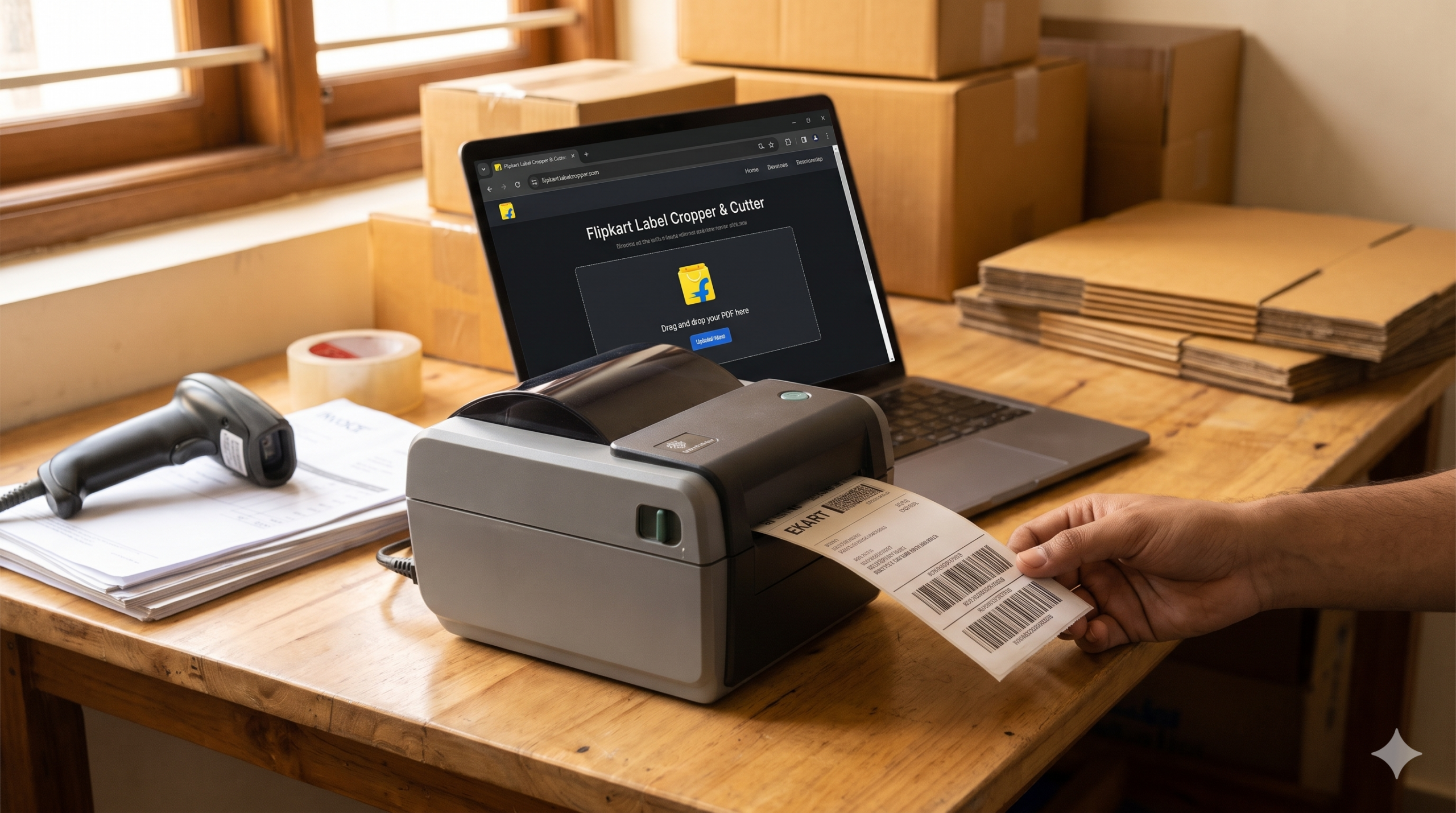
Managing daily dispatches on Flipkart Seller Hub requires speed and accuracy. When orders pile up before morning courier pickups, manually resizing shipping manifests slows down your packing line and increases the risk of barcode scan errors.
By default, Flipkart bundles both the delivery address tag and the customer’s GST invoice onto a single A4 PDF sheet. Using an automated Flipkart label cutter and invoice label crop tool eliminates manual editing and prepares your orders for thermal printing in seconds.
Understanding the Default Flipkart Label and Invoice Layout
When you download bulk manifests from Seller Hub, each page contains two distinct sections:
- Top Section (Shipping Tag): Displays the buyer’s delivery address, return center details, EKart sorting hub code,and the primary scannable tracking barcode.
- Bottom Section (Tax Invoice): Lists the product SKU, HSN code, GST breakup, and seller billing details.
If you print this unedited file directly onto a thermal roll printer, the driver shrinks the entire A4 sheet to fit the roll. This reduces the Flipkart label text to an unreadable size and blurs the barcode lines, leading to pickup rejections.
Getting the Exact Shipping Label Size Right
To ensure 100% barcode scannability across all courier sorting facilities, your printed output must match standard thermal dimensions:
- Standard Thermal Dimensions:
4 × 6 inches(100 mm × 150 mm) - Print Resolution:
203 DPIor300 DPI - Supported Printers: TSC, Zebra, Xprinter, TVS, and Rollo thermal label printers
Using a dedicated shipping label cropper automatically detects the exact boundary of the top shipping tag and scales it cleanly to 4×6 inches without stretching the barcode.
Step-by-Step: How to Perform a 1-Click PDF Label Crop
You do not need expensive desktop software or complex PDF editors to crop Flipkart label batches. Follow these steps using our browser-based Flipkart Label Cropper
Export Your Orders: Log in to your Flipkart Seller dashboard, select your Ready to Ship orders, and download the combined PDF manifest.
Upload to the Flipkart Label Crop Tool: Open Flipkart Label Cropper and upload your multi-page PDF document.
Select Your Output Layout:
- 4×6 Thermal Roll: Extracts every label crop into individual 100mm × 150mm pages ready for thermal rolls.
- Separate Invoice PDF: Runs an instant invoice label crop that keeps all customer tax invoices neatly organized in a separate file for standard A4 printing.
- 4-in-1 A4 Sticker Sheet: Arranges four cropped labels onto a single A4 page if you print using standard inkjet or laser printers.
Download and Print: Click download and send the clean PDF label crop directly to your thermal printer
Why Browser-Based Cropping Protects Seller Data
Many online PDF tools upload your seller manifests to external cloud servers. Because Flipkart shipping label cropper processes files locally inside your web browser, sensitive customer phone numbers, addresses, and order values never leave your computer.
Start streamlining your warehouse dispatch workflow today with our free Flipkart label cutter—built specifically for high-volume Indian e-commerce sellers.